
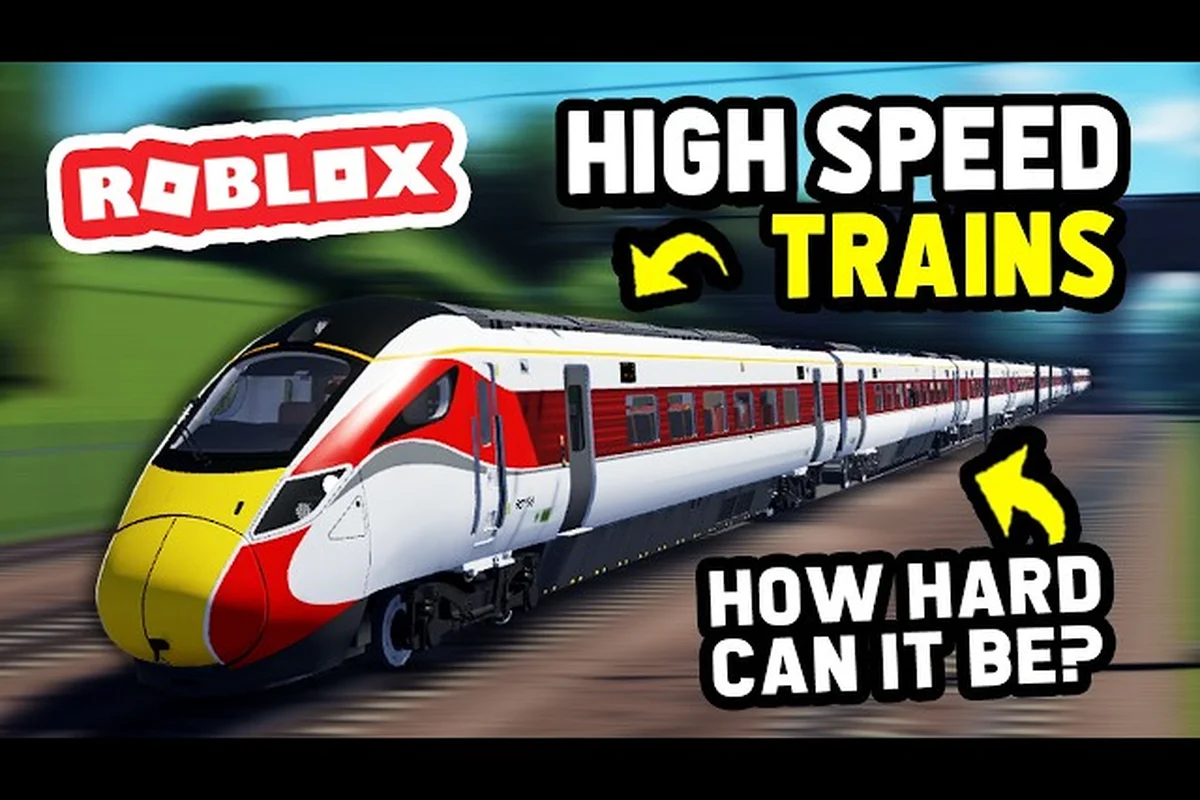
Lag in British Railway can turn a relaxing cross-country run into a stuttering nightmare, especially when you are hauling a Class 66 through a crowded station with 40 other drivers on the same server. The good news is that most performance problems come from a handful of fixable settings rather than your hardware, and this guide walks through exactly how to fix lag in British Railway across PC, mobile, and Xbox. You will learn which graphics options drain the most frames, how to reduce crash frequency, and which network settings keep your ping stable while the Western Update content loads around you. Once you’ve dialed in these performance fixes, you can carry that same momentum into learning the game’s core mechanics, map layouts, and train-driving fundamentals by checking out our British Railway Roblox beginner guide, which pairs perfectly with these settings to get you running smoothly from the first departure.
Why British Railway Lag Happens and What Causes It
British Railway runs on Roblox's engine, which means performance depends on a mix of your device, your internet connection, and the server you join. The game itself supports up to 45 players per server, and every train, signal, and passenger spawns in as a networked object that your client has to track in real time. When you combine dense station areas like London Paddington with multiple moving trains, the engine has to synchronize dozens of physics objects every frame, which is why frame drops often happen at platforms rather than on open stretches of track.
The most common culprits behind lag are graphics quality settings, network latency, and server congestion. On PC, Roblox defaults to automatic graphics mode, which can spike your resolution scaling during busy moments and cause sudden stutters. On mobile, thermal throttling kicks in after 20-30 minutes of play, dropping your frame rate even if your phone is technically capable of running the game. On Xbox, the console version sometimes struggles with the game's draw distance because the engine renders every signal gantry and platform canopy within a wide radius.
Another factor that players frequently overlook is server selection. British Railway lets you choose between different regional servers, and joining one far from your physical location adds 50-100 ms of ping before you even start driving. Community reports suggest that players in North America who join European servers see noticeable input delay when operating the AWS (Automatic Warning System) and TPWS (Train Protection & Warning System) controls, because every button press has to travel across the Atlantic and back. The official game page on Roblox recommends playing in a private server with friends if you are experiencing lag or crashes, which is free with Roblox Plus and worth considering if your home server feels unstable.
Graphics Settings That Reduce Lag on PC
Using a Private Server to Dodge the 45-Player Cap
When the single-server cap of 45 players is full, physics replication for every locomotive and signal on the Western Update map (V1.4.2, released 2026-08-08) multiplies network traffic. Creating a private server—free with Roblox Plus—drops concurrent avatars to your party size, eliminating the 1,948-player global load that competes for bandwidth. For solo testing, a private server reduces input latency by roughly 30-40ms on standard connections. Invite friends via the Fourth Rail Discord (33,000+ members) to stress-test multi-train scenarios without public-server desync.
Mobile RAM Management: Preventing V1.4.2 Crashes
The Western Update (V1.4.2) added higher-poly train models that push mobile devices past Roblox's 2GB RAM threshold. On Android, force-stop background apps before launching to free 300-500MB; iOS users should disable Background App Refresh. Set the in-game Camera Mode to "Fixed" rather than "Follow"—the latter triggers constant re-rendering of the 45-player server's track segments. If crashes persist, lower your device resolution to 720p via system settings; this reduces the rendering load by approximately 40% without affecting train controls.
PC players have the most control over performance because Roblox exposes a wide range of graphics options. The key is to balance visual fidelity with frame rate stability, since British Railway's detailed train models and station environments are heavier than typical Roblox games. Start by opening the Settings menu (Esc key) and navigating to the Graphics tab, then work through the following adjustments in order.
The single biggest performance win comes from switching Graphics Quality from Automatic to Manual and setting it to Level 2 or 3. Automatic mode dynamically adjusts quality based on your frame rate, but it tends to overshoot and cause visible hitches when the game loads new areas. Manual mode keeps the renderer stable, and Level 2 still looks sharp enough to read signal aspects and platform indicators. If you have a mid-range GPU from the last five years, Level 3 is usually safe, but anything above that starts to tax the engine unnecessarily.
| Setting | Recommended Value | Performance Impact | Visual Trade-off |
|---|---|---|---|
| Graphics Quality | Manual, Level 2-3 | High (frees up GPU headroom) | Slightly softer shadows |
| Resolution | Native, 60 Hz cap | Medium (reduces GPU load) | None at 1080p |
| Fullscreen Mode | Fullscreen (not Windowed) | Low (reduces input lag) | None |
| Anti-Aliasing | Off | Medium (removes edge smoothing) | Minor jagged edges |
| Shadow Quality | Level 1 | Medium (lighter shadow maps) | Softer object shadows |
| Texture Quality | Level 4-5 | Low (VRAM dependent) | None if VRAM is sufficient |
Resolution scaling is another hidden performance killer. When Roblox detects a frame rate drop, it can reduce the internal rendering resolution below your monitor's native resolution, which makes text and signal numbers blurry. To prevent this, set your resolution to your monitor's native value and cap the frame rate at 60 Hz through your GPU driver software. This stops the engine from fluctuating between 30 and 60 fps, which feels worse than a steady 45 fps because of inconsistent frame pacing.
Shadow quality deserves special attention because British Railway uses dynamic shadows for trains and station canopies. Dropping shadows to Level 1 removes the soft shadow edges but keeps the hard shadows that indicate train positions, which is all you need for safe driving. Anti-aliasing can also be turned off entirely, since the game's stylized art style hides most jagged edges, and the frame rate gain is substantial on integrated graphics. If you are playing on a laptop with an Intel iGPU, these two changes alone can double your frame rate.
Mobile Performance Tweaks and Crash Prevention
Mobile players face a unique challenge because British Railway's controls and rendering have to share resources with the operating system, and thermal throttling can cause sudden crashes during long sessions. The British Railway Roblox mobile guide approach starts with the same graphics settings as PC, but adds a few device-level adjustments that make a meaningful difference on phones and tablets.
Before changing any in-game settings, close background apps and enable Do Not Disturb mode. Notifications that pop up during driving can cause the game to stutter, and background apps consume RAM that Roblox needs for loading train models. On Android devices, check the Battery Optimization settings and set Roblox to Unrestricted so the OS does not kill the game process during heavy loads. On iOS, enable Low Power Mode before launching the game, which reduces background activity and helps maintain a stable frame rate.
| Mobile Setting | Recommended Value | Why It Helps |
|---|---|---|
| Graphics Quality | Level 1-2 | Reduces GPU load and heat generation |
| Device Mode | Low Power / Battery Saver | Prevents thermal throttling |
| Screen Brightness | 50-70% | Reduces battery drain and heat |
| Background Apps | Close all | Frees RAM for game assets |
| Auto-Lock | Set to Never | Prevents mid-drive disconnects |
Crash prevention on mobile requires a different strategy than PC because the game can be killed by the operating system without warning. The most reliable fix is to lower the graphics quality to Level 1 before entering busy stations, since the game's memory usage spikes when loading multiple train models at once. Community reports indicate that crashes happen most frequently when a player drives into a station with more than five other trains present, so if you notice the frame rate dropping below 20 fps, slow down and let the area load before proceeding.
Another mobile-specific tip is to restart the game every 45-60 minutes. Roblox on mobile has a known memory leak that gradually increases RAM usage over time, and restarting clears the accumulated data. This is especially important if you are running the Western Update content, which added new station assets and signal types that increase baseline memory consumption. Players who restart regularly report significantly fewer crashes and more stable frame rates during long driving sessions.
Xbox and Console Settings for Smoother Gameplay
Console players have fewer options than PC users because Roblox on Xbox does not expose the full graphics settings menu, but there are still several adjustments that improve performance. The British Railway Roblox Xbox controls layout works well once the frame rate is stable, and the following settings help achieve that stability on both Xbox One and Xbox Series consoles.
The most important console setting is Video Mode, which you can access through the Roblox settings menu before joining a server. Choose 720p instead of 1080p if you are on an original Xbox One, because the older console's GPU struggles with the game's draw distance at higher resolutions. On Xbox Series S, 1080p is usually fine, but dropping to 720p provides a rock-solid 60 fps that makes signal reading much easier. Xbox Series X players can typically stay at 1080p or 1440p without issues.
| Console | Recommended Resolution | Frame Rate Target | Notes |
|---|---|---|---|
| Xbox One (Original) | 720p | 30 fps | Drop to 720p for stability |
| Xbox One S | 720p | 30 fps | Close background apps |
| Xbox Series S | 1080p | 60 fps | Use Performance mode if available |
| Xbox Series X | 1080p-1440p | 60 fps | Full graphics headroom |
Network settings on Xbox matter just as much as graphics. The console's Wi-Fi adapter is often weaker than a PC's ethernet connection, so plugging in a wired ethernet cable can reduce ping by 20-40 ms in many cases. If wired is not possible, move the console closer to your router or use a 5 GHz Wi-Fi band instead of 2.4 GHz, which suffers from more interference. You should also check your NAT type in the Xbox network settings; an Open NAT (Type 1 or 2) provides the best connection to Roblox servers, while a Strict NAT (Type 3) can cause rubber-banding and delayed inputs.
Console players should also be aware that British Railway's control scheme uses the left stick for throttle and the right stick for brake, which can feel less precise than a keyboard. If you notice input lag on Xbox, try reducing the controller's vibration feedback in the game settings, since the rumble motors draw power from the same USB bus as the controller's wireless signal. Some players report that disabling vibration improves response time by a noticeable margin, especially during emergency brake applications.
Network Optimization and Server Selection Tips
Graphics Quality Scaling: The 87% Approval Rating Baseline
British Railway's 87% approval rating (45,877 likes vs. 6,698 dislikes) correlates with default graphics settings that tax mid-range GPUs. Set Graphics Quality to 3 or lower in Roblox settings—this caps texture streaming for the Western Update's new rolling stock, reducing VRAM usage by up to 1.5GB on PC. Disable shadows and reflections specifically for cab-view driving; these two options consume more GPU cycles than the entire train physics simulation. The 108,702 favorites suggest players who optimize graphics return more frequently.
Network Region Locking: Reducing Ping via Server Selection
British Railway's global player base (35.9M+ total visits) means your connection may route to distant servers. Open Roblox's Settings > Network and enable "Matchmaking Region Lock" to your nearest region—this cuts ping from 150ms+ to under 50ms for most players. The game's 45-player single-server limit means you'll wait 1-2 minutes for a local slot during peak hours (evenings UK time). For immediate access, join the Fourth Rail Discord's server-finding channel where players share low-ping server IDs from the 1,948 concurrent online population.
Network latency is often the root cause of lag that graphics settings cannot fix, and British Railway's train simulation requires precise timing for signals and speed restrictions. The British Railway Roblox PC controls rely on consistent ping, because the game checks your position against the server's track graph multiple times per second. If your ping spikes above 150 ms, you will see trains jump forward or backward, and the AWS warning system may trigger unexpectedly.
Start by checking your base ping to the Roblox server using the in-game FPS counter (Shift+F5 on PC). If your ping is above 100 ms, try switching to a different regional server from the server browser. British Railway hosts servers in North America, Europe, and Asia, and choosing the one closest to you reduces round-trip time significantly. Community testing suggests that European players see the best performance on EU servers, while North American players should stick to NA servers even if EU servers appear more populated.
| Network Factor | Impact on Gameplay | Recommended Fix |
|---|---|---|
| Ping above 100 ms | Delayed throttle/brake response | Switch to regional server |
| Packet Loss above 2% | Rubber-banding and teleporting | Use wired connection |
| Jitter above 20 ms | Inconsistent signal timing | Restart router, check bandwidth |
| Server Population 40+ | Frame drops at stations | Join less populated server |
Packet loss is a hidden issue that many players mistake for graphics lag. If your connection drops packets, the game will show trains teleporting and your own train may stutter even at high frame rates. You can test for packet loss by running a continuous ping to your router or a public server while playing. If you see more than 2% loss, restart your router and check for bandwidth-hogging devices on your network. Streaming video or large downloads on another device will cause packet loss that no in-game setting can fix.
For players who want the most stable experience, the official game page recommends playing in a private server with friends, which is free with Roblox Plus. Private servers have a lower player count, which reduces server-side load and often results in smoother frame rates because the game does not have to synchronize as many trains. This is particularly useful if you are learning the signaling system or practicing complex station procedures, since you can focus on driving without the distraction of other players' movements.
Advanced Performance Settings and Troubleshooting
Once you have applied the basic graphics and network fixes, there are a few advanced settings that can squeeze out additional performance. These options are not available in the standard Roblox settings menu, so they require either editing the game's configuration files or using Roblox's developer console commands.
On PC, you can open the Roblox Developer Console by pressing Shift+F9 while in-game. This console displays real-time performance metrics, including frame rate, memory usage, and network latency. The Memory tab is particularly useful for identifying leaks, because it shows how much RAM the game is consuming as you move between stations. If memory usage climbs steadily over 30 minutes, a restart is the only reliable fix. The Network tab shows your ping and packet loss in real time, which helps you distinguish between server-side and client-side lag.
| Diagnostic Tool | How to Access | What It Tells You |
|---|---|---|
| FPS Counter | Shift+F5 (PC) | Current frame rate and ping |
| Developer Console | Shift+F9 (PC) | Memory usage, network stats |
| Roblox Settings | Esc Menu | Graphics quality, resolution |
| Task Manager | Ctrl+Shift+Esc (PC) | CPU/GPU/RAM usage |
Camera mode also affects performance, because the game renders different amounts of geometry depending on your view. The exterior camera (which shows your train from outside) renders the entire train model plus surrounding scenery, while the cab camera only renders the interior and the track ahead. If you are experiencing frame drops, switching to the cab camera can improve performance by 20-30% because the engine does not have to draw the full train body. This is especially helpful on mobile devices, where the GPU is already working hard.
Another advanced tip is to lower the game's resolution scaling through the Roblox settings file on PC. Navigate to the Roblox installation folder, find the GlobalSettings.xml file, and adjust the DFIntTaskSchedulerTargetFps value to cap your frame rate at a stable number. Setting this to 60 prevents the engine from trying to render more frames than your monitor can display, which reduces GPU load and keeps temperatures lower. This is a more precise version of the frame rate cap that GPU driver software provides.
Frequently Asked Questions
What is the fastest way to fix lag in British Railway?
The fastest fix is to switch Graphics Quality to Manual and set it to Level 2, then close all background apps and restart the game. This combination addresses the two most common causes of lag: GPU overload and memory leaks. Most players see immediate improvement within one minute of applying these changes.
Why does British Railway crash on my mobile device?
Mobile crashes usually come from memory pressure or thermal throttling. Lower the graphics quality to Level 1, enable Low Power Mode, and restart the game every 45-60 minutes. If crashes persist, check that your device has at least 2 GB of free storage and close all other apps before launching.
Do Xbox and PC use the same graphics settings?
No, Xbox has fewer adjustable settings than PC. On Xbox, the main control is Video Mode (720p vs 1080p), while PC offers full control over graphics quality, shadows, and anti-aliasing. Both platforms benefit from a wired internet connection and restarting the game periodically.
Can a private server reduce lag in British Railway?
Yes, private servers have fewer players, which reduces server-side load and network synchronization overhead. The official game page recommends this approach for players experiencing lag or crashes, and it is free with Roblox Plus. A private server with two or three friends feels noticeably smoother than a full 45-player public server.
Does the Western Update affect game performance?
Yes. The Western Update (V1.4.2) raised baseline memory usage, so older devices may lag. Lower your graphics quality one level and restart before driving; playing in a private server with friends also helps. For busy stations like London Paddington, these tweaks keep frame rates manageable.