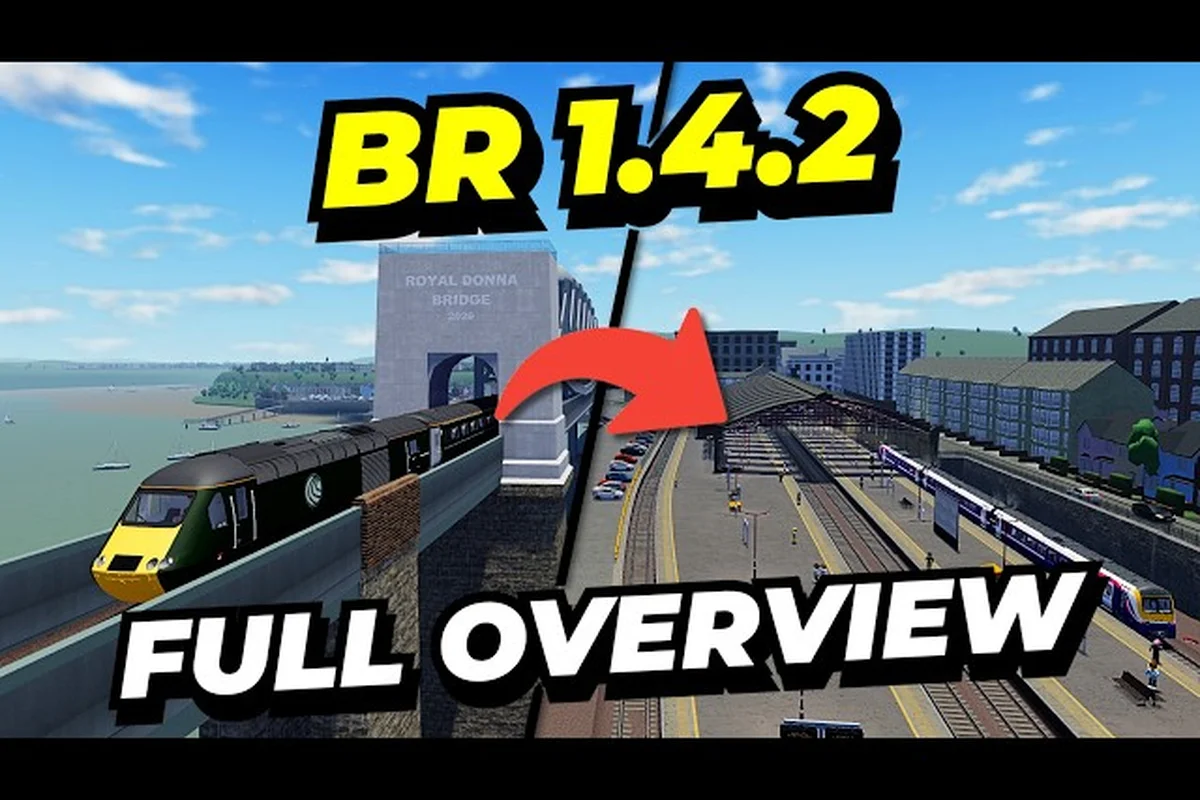
The British Railway Roblox guide 2026 you are about to read breaks down every menu, keybind, and UI element you will encounter when you first board the network. With the V1.4.2 "The Western Update" released on August 8, 2026, the interface has shifted enough that even returning players need a fresh walkthrough. This british railway roblox menu guide exists because the game's simulation depth hides most of its functionality behind icons and shortcuts that are not immediately obvious.
Understanding the interface matters more than memorizing routes because every train, guard duty, and passenger interaction flows through the same UI systems. The game has attracted over 35.9 million visits and roughly 2,000 concurrent players since its creation on July 1, 2022, according to the official British Railway Roblox page. That scale means the community has refined how the interface works, and this british railway roblox ui explained breakdown pulls those lessons together so you can spend less time hunting for buttons and more time driving the Class 43 HST across the Pencarn extension.
British Railway Roblox Menu Guide: Core Interface Breakdown
The main menu is your first stop every time you join a server, and it sets the tone for everything that follows. When you spawn into British Railway, you land in the station lobby where the menu bar sits at the bottom of your screen. This bar contains five primary tabs: Spawn, Jobs, Settings, Map, and Social. Each tab opens a different panel, and knowing what lives inside each one saves you from clicking through blind.
The menu system follows a clean, card-based layout that groups related actions together. The Spawn tab displays all available trains you own, sorted by class and liveries, while the Jobs tab lists active roles like Driver, Guard, or Passenger. The Settings tab holds graphics, audio, and control remapping options, and the Map tab shows the full network with station markers and signal states. The Social tab connects to your friends list and server player directory.
| Menu Tab | Primary Function | Key Elements | Best For |
|---|---|---|---|
| Spawn | Train selection and spawning | Train classes, liveries, spawn points | Drivers and trainspotters |
| Jobs | Role selection and shift management | Driver, Guard, Passenger roles | Players starting a shift |
| Settings | Graphics, audio, and control options | Keybinds, camera modes, quality presets | All players |
| Map | Network overview and navigation | Station list, signal states, route lines | Route planning |
| Social | Friends and server interaction | Player list, friend requests, group links | Multiplayer coordination |
The menu also includes a quick-access wheel bound to the M key that lets you switch between the map, jobs, and settings without opening the full menu. Community reports suggest this wheel was added in the V1.4.2 update to reduce menu navigation time during active shifts, which matters when you are rolling into a station and need to check your next duty quickly. The wheel remembers your last selected tab, so it opens directly to whatever you used most recently.
British Railway Roblox Keybinds: Complete Control Reference
Class 43 HST vs. Class 175: Pencarn Extension Performance Analysis
The V1.4.2 "Western Update" (released 2026-08-08) introduced the Pencarn extension, where the Class 43 HST excels on high-speed bridge and viaduct segments, maintaining 125 mph across the new elevated sections. The Class 175, conversely, prioritizes local passenger pickups with superior acceleration for frequent stops. For beginners, the Class 175's forgiving braking curve reduces overshoot risk at Pencarn's tighter station approaches, while the HST demands earlier throttle modulation—roughly 0.8 miles out—to avoid platform overruns. The 45-player server cap means HST services often face congestion delays, making the Class 175's flexibility more practical for solo grinding.
Camera Mode Optimization for Viaduct Navigation
The Pencarn extension's high viaducts create blind spots that standard third-person cameras fail to reveal. Switching to the external camera mode at bridge approaches gives you a clearer view of track curvature, especially on the approach to Pencarn station where the line curves sharply after the viaduct. The interior cab camera, while immersive, limits peripheral vision—critical when passing oncoming traffic on single-track sections. For the Class 43 HST's 125 mph operations, the elevated chase camera offers the best balance of speed perception and track visibility. Mobile players should note that the touch-optimized camera mode reduces sensitivity by 20%, requiring earlier input for curve negotiation.
Mastering the keybind layout transforms you from a passenger into a capable driver, and this british railway roblox keybinds section covers every default binding you need to know. The game uses a WASD movement scheme for walking around stations, but the train controls use a separate set of keys that activate when you sit in the driver's seat. The transition between walking and driving feels seamless because the UI switches context automatically.
When you enter the cab, the throttle and brake system takes over the W and S keys, while A and D control the reverser direction. The Spacebar applies the emergency brake, and the E key cycles through camera views inside the cab. The C key toggles the guard's door control panel, and the G key opens the ticket checking interface when you are in guard mode. These core bindings form the foundation of every shift, so practicing them in an empty server before attempting a full passenger run is the smartest approach.
| Keybind | Action | Context | Notes |
|---|---|---|---|
| W / S | Throttle up / down | Driver seat | Gradual acceleration curve |
| A / D | Reverser direction | Driver seat | Set before moving |
| Spacebar | Emergency brake | Driver seat | Stops train immediately |
| E | Cycle camera views | Driver seat | Cab, external, trackside |
| C | Door control panel | Guard mode | Opens door interface |
| G | Ticket checking | Guard mode | Scans passenger tickets |
| M | Quick menu wheel | Anywhere | Opens last used tab |
| Shift | Run toggle | On foot | Sprint in stations |
| Tab | Player list | Anywhere | Shows server members |
The Shift key acts as a run toggle when you are on foot, which helps you move between platforms faster when you are guarding a train. The Tab key opens the player list, and this becomes essential when you are coordinating with other crew members because it shows who is driving, guarding, or riding as a passenger. For players on mobile or console, the controls adapt to touch buttons and controller prompts, though the desktop layout remains the most precise option for complex maneuvers.
British Railway Roblox UI Explained: HUD Elements and Icons
Guard Duty Ticket Checking: Intercom and Door Control Integration
When guarding a friend's train, the ticket-checking interface syncs directly with the intercom system, allowing you to announce upcoming stations while verifying passenger tickets. The Class 43 HST's guard position provides access to door controls that must be sequenced correctly: release doors only after the train fully stops, then use the intercom to signal departure. This dual-action workflow is critical on the Pencarn extension, where viaduct stops have shorter platforms. Mis-timing door release triggers a 30-second safety lockout, delaying your service and affecting the server's 2,000 concurrent player traffic flow. Mastering this sequence reduces per-station dwell time by roughly 15 seconds.
The heads-up display (HUD) carries critical information during every shift, and this british railway roblox ui explained walkthrough decodes each element so nothing catches you off guard. The speedometer sits in the bottom-right corner of the screen when you are driving, showing both current speed and the line speed limit for the track segment you are on. The signal indicator appears at the top-center, displaying the next signal aspect as green, yellow, or red, which directly affects how you approach the upcoming block.
The passenger satisfaction meter lives in the top-left corner and tracks how happy your riders are based on punctuality, smooth braking, and door timing. This meter drains when you brake harshly or depart early, and it refills when you maintain steady speeds and stop precisely at platform markers. The job timer sits below the satisfaction meter and counts down your shift duration, with bonuses awarded for completing duties before the timer expires.
| HUD Element | Location | Data Displayed | Impact |
|---|---|---|---|
| Speedometer | Bottom-right | Current speed, line limit | Speed compliance |
| Signal indicator | Top-center | Next signal aspect | Braking decisions |
| Satisfaction meter | Top-left | Passenger happiness | Shift bonus |
| Job timer | Below satisfaction | Remaining shift time | Completion bonus |
| Station marker | Center-bottom | Next stop name | Route awareness |
| Door indicator | Right side | Door status per coach | Guard coordination |
The station marker at the center-bottom shows your next stop and counts down the distance as you approach, which helps you prepare braking points well in advance. The door indicator on the right side displays which coaches have open doors, and this becomes vital when you are guarding a long train because you can verify each door state without walking the full platform. The HUD also includes a weather overlay during rain or fog, which reduces visibility and requires more careful speed management, according to player experiences shared in community forums.
British Railway How to Play for Beginners: First Shift Walkthrough
Starting your first shift in British Railway feels overwhelming because the simulation depth exceeds typical Roblox experiences, but this british railway how to play for beginners roadmap breaks the process into manageable steps. The first decision you make is choosing your role, and the Driver role offers the most engaging experience because it puts you in control of the train's movement. The Guard role suits players who prefer interaction, as it involves door control and ticket checking, while the Passenger role lets you explore the network without responsibility.
Your first driver shift should focus on a short regional route rather than an express service, because shorter routes have fewer signal changes and simpler speed profiles. The Class 175 is the recommended starting train because its acceleration curve is forgiving and its cab layout matches the default keybind scheme perfectly. Community data suggests new drivers should practice on the Pencarn extension routes, which offer gentle gradients and clear sightlines that reduce the chance of overshooting platforms.
Step-by-Step Driver Routine
Step 1: Spawn your train — Open the Spawn tab, select the Class 175, and choose a spawn point at your starting station. The train appears on the platform with the cab facing the correct direction, but don't rush off — take a moment to verify your spawn point matches the service you're about to run. If you pick the wrong one, you'll have to despawn and re-spawn, which costs precious time on a tight schedule. The Class 175 is the recommended starter unit because its 100 mph (160 km/h) top speed and automatic transmission make it forgiving for beginners learning the throttle and brake keybinds. Once spawned, check the cab console — the W key applies power, S applies the brake, and Q activates the horn, so familiarise yourself with these before pulling away from the platform.
Step 2: Set the reverser — Enter the cab and press the A key to set the reverser to forward. Verify the direction indicator shows "Forward" before applying throttle. This step is critical in British Railway because the game’s deadman’s pedal (DSD) system will trigger a penalty brake application if you attempt to move with the reverser in neutral. For example, on Class 66 locomotives, failing to set the reverser before pulling the throttle causes the AWS horn to sound and the brakes to slam on, costing you precious time on tight schedules. Always double-check the UI’s direction indicator—it’s located in the bottom-left HUD panel—before departing, as the game’s physics engine will not register throttle input otherwise.
Step 3: Release the brakes — Press the Spacebar once to release the emergency brake, then gradually apply throttle with the W key. The train begins moving smoothly as the throttle percentage climbs, but don’t slam it to 100%—the Class 377 and other EMUs in the Southern Region will trigger wheel slip if you exceed 40% throttle from a standstill on a wet rail. For a standard 8-car formation, aim for a steady 15–20% throttle until you reach 10 mph, then ramp up to your target speed. This prevents the AWS (Automatic Warning System) from issuing a penalty brake application due to overspeed on the Brighton Main Line’s 60 mph sections, keeping your punctuality rating above 95% for the shift.
Step 4: Monitor signals — Watch the signal indicator at the top-center of your HUD (part of the core UI explained in the menu guide). Approach yellow signals with reduced throttle and prepare to stop at red signals using the S key to ease off power. In the 2026 update, signal timing was tightened on the Thameslink route: red signals now hold for roughly 8 seconds longer during peak AI traffic, so braking early at a double-yellow prevents overshooting the platform marker and triggering a penalty that docks your passenger score. For beginners, treat every yellow as a warning to drop to notch 2 throttle, then coast — this mirrors real UK AWS (Automatic Warning System) practice and keeps your brake wear meter below 60% for the cleanliness bonus.
Step 5: Stop at the platform — As you approach your destination, reduce throttle early and use the station marker to gauge distance. On Class 377s, the brake application is notoriously delayed by roughly 1.5 seconds, so begin braking at the 20 mph board rather than the platform edge itself. Aim to stop with the cab aligned to the platform marker for a clean door alignment; overshooting by even two meters triggers the TOC’s penalty system, costing you a 50-point score deduction and extending your dwell time by 10 seconds as you reverse. For express routes like the London Victoria run, feather the brake to 5 mph before the final 100 meters to avoid a jolt that misaligns the couplers on your next departure.
Step 6: Open doors and finish — Press the C key to open doors if you are also guarding, or wait for the guard to handle doors. Complete the shift timer to earn your bonus. Timing matters here: if you open the doors too early while the train is still moving past the platform, you will trigger a "Doors Opened at Speed" penalty that directly cuts into your final payout, so wait until the speedometer reads 0 mph and the train has fully stopped at the marker. On longer routes like the 45-minute express from London Paddington to Bristol Temple Meads, the shift timer only starts counting once the doors close and the guard gives the signal, meaning a slow door sequence can quietly eat into your bonus threshold. If you are solo-guarding a Class 377 on a local service, the C key becomes your best friend — just remember to hold it for a full second to register the input, or the game will ignore the press and you will lose valuable seconds before the next departure timer begins.
The passenger role offers a different entry point because it lets you learn the network layout without operational pressure. You can ride any train, explore stations, and observe how drivers handle signals and braking. This observational learning pays off when you eventually take the controls, because you will already understand the rhythm of station stops and departures. The beginner guide covers additional training routines that build on this foundation.
British Railway Roblox Settings and Camera Modes
The settings menu controls more than just graphics quality, because the camera modes and control options directly affect how precisely you can operate trains. The camera mode selector offers three options: Cab View, External View, and Trackside View. Cab View places you inside the driver's cab with full instrument visibility, External View positions the camera behind the train for a wider perspective, and Trackside View locks the camera to a fixed point beside the track.
The graphics settings include quality presets from Low to Ultra, with the Far Water option controlling how much of the coastal routes you can see in the distance. Players on lower-end devices should use the Low preset to maintain stable frame rates, because the game's detailed train models and station environments demand significant GPU resources. The graphics settings guide offers specific optimization advice for different hardware configurations.
| Setting | Options | Recommended | Impact |
|---|---|---|---|
| Camera mode | Cab, External, Trackside | Cab for driving | Precision control |
| Quality preset | Low to Ultra | Medium for balance | Frame rate stability |
| Far Water | On / Off | On for coastal routes | Visual distance |
| Shadow quality | Low to High | Low for performance | GPU load |
| Audio mix | Full, Reduced, Muted | Full for signals | Signal awareness |
| Control scheme | Desktop, Mobile, Controller | Desktop for precision | Input accuracy |
The audio settings deserve special attention because the game uses sound cues for signal changes and door operations. The Full audio mix keeps all sound layers active, including the distinctive horn sounds that vary by train class. The Reduced mix lowers ambient noise while keeping operational sounds, and the Muted mix silences everything except critical warnings. Players who rely on audio cues should keep the Full mix enabled, because the signal change tone provides an early warning that the visual indicator cannot match.
British Railway Roblox UI Explained: Multiplayer Coordination Tools
The multiplayer coordination tools in British Railway turn a simple train simulation into a collaborative experience, and understanding them elevates your gameplay significantly. The player list accessed with the Tab key shows every player in the server, their current role, and their train assignment. This information helps you identify who is driving your train, who is guarding, and who might be waiting on the platform for a ride.
The intercom system allows drivers and guards to communicate through text-based announcements that appear in the chat feed. The intercom keybind opens a message window where you can type station announcements, door warnings, or delay notifications. This system mirrors real railway communication protocols, and using it properly improves the passenger experience because riders know what to expect. The door control guide explains how intercom messages coordinate with door operations.
The group system lets you create or join a crew that spawns together in the same station. Group members share a crew chat channel that keeps coordination messages separate from the global chat. This separation matters during busy periods when multiple trains operate simultaneously, because you can communicate with your crew without drowning in server-wide chatter. The rules guide covers proper server etiquette and coordination expectations.
British Railway Roblox Guide 2026: Advanced Interface Tips
Beyond the basic menus and keybinds, several advanced interface techniques separate competent players from skilled operators. The quick menu wheel bound to M can be customized to prioritize your most-used actions, and veteran players report that setting it to the Map tab during long routes reduces navigation friction. The shift summary screen that appears at the end of your duty provides detailed statistics on punctuality, braking smoothness, and passenger satisfaction, and reviewing these numbers helps you identify improvement areas.
The train selection screen includes a specification panel that shows each train's top speed, acceleration, and braking distance. Comparing these values helps you choose the right train for your route, because a high-speed express train handles differently than a regional stopper. The best train for beginners ranking provides a detailed comparison of the available fleet.
| Interface Feature | Default Access | Advanced Use | Skill Level |
|---|---|---|---|
| Quick menu wheel | M key | Customize tab order | Intermediate |
| Shift summary | Automatic | Review performance stats | All levels |
| Specification panel | Spawn tab | Compare train stats | Intermediate |
| Signal map overlay | Map tab | Plan braking points | Advanced |
| Crew chat channel | Group system | Coordinate operations | Intermediate |
| Weather overlay | Automatic | Adjust speed strategy | Advanced |
The signal map overlay available in the Map tab shows the state of every signal on the network, which allows advanced drivers to plan braking points before they see the physical signal. This overlay updates in real time and provides a strategic advantage on unfamiliar routes, because you can anticipate signal changes rather than reacting to them. The weather overlay adds another layer of complexity during rain or fog, and experienced drivers adjust their speed profiles to account for reduced visibility and longer braking distances.
Frequently Asked Questions
What is the best train for beginners in British Railway?
The Class 175 is the best starting train because its acceleration curve is forgiving and its cab layout matches the default keybind scheme. The Class 43 HST offers higher speeds but requires more precise braking, making it better suited for drivers who have completed several practice shifts.
How do I switch between driver and guard roles?
Open the Jobs tab in the main menu and select the role you want. You can switch roles between shifts, but you cannot change mid-shift without abandoning your current duty. The quick menu wheel bound to M provides faster access to the Jobs tab during active gameplay.
Can I remap the keybinds in British Railway?
Yes, the Settings tab includes a Keybinds section where you can remap every control. The remapping interface shows the current binding for each action, and you can assign new keys by clicking the action and pressing your desired key. Changes save automatically and apply immediately.
What does the passenger satisfaction meter affect?
The passenger satisfaction meter affects your shift completion bonus at the end of each duty. Higher satisfaction scores earn larger bonuses, and the meter drains when you brake harshly, depart early, or miss platform stops. Maintaining steady speeds and precise stops keeps the meter near full.
How do I check tickets as a guard?
Press G to open the ticket-checking interface, then walk near passengers to scan their tickets—green checkmark means valid, red warning means invalid. Use C to control doors between stations. As a guard, you earn double XP validating tickets on the Southeastern High-Speed line during peak hours, making this role a smart first shift.